Have you ever typed a URL into the search bar of a browser and it showed “Page Not Found”? This happens due to the 404 Page Not Found error. Error 404 means an HTTP status code that occurs when the server does not find the web page the browser (client) requested. It is shown on screen with messages like ‘404 Not Found’ or ‘Page Not Found’ when the page is either deleted or moved to a different URL. In this detailed article, you will know the technical meaning of the error, why it happens, and how ot fix it.
What Does Error 404 Mean?
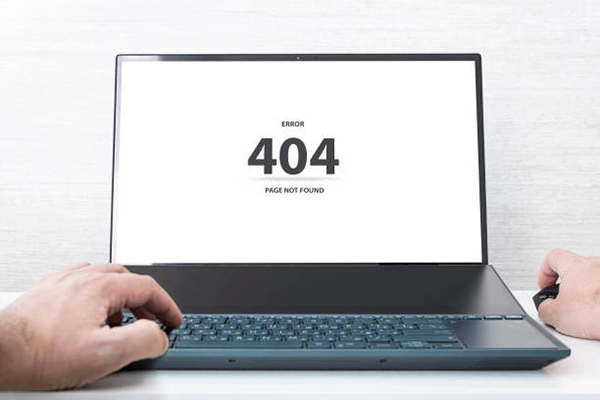
Error 404 means a Hypertext Transfer Protocol status code displayed in the browser when the client requests a webpage from the server, but the server cannot find the exact page associated with the requested URL. It shows different error codes in the browser depending on the type of error, such as 410 when the page is deleted or removed and 403 when the page is available but access to it is prohibited. But mainly, the 404 is shown when the page is not found.
Understanding how websites work can help explain why these errors occur. Our guide on what web development is explains the processes involved in creating and maintaining websites.
Types of 404 Errors
There are generally 2 types of 404 errors: Hard 404 error and Soft 404 error. We experience different 404 errors daily because of missing files, data relocation, and new link creation. Below are the two types of 404 errors that display on screen when the URL searched does not exist:
1. Hard 404
A hard 404 is the HTTP status code that shows the clear message Page Not Found’ when the user tries to search for a URL or click on a link. It happens. It gives a clear message, and a few 404 errors do not impact the ranking of the website.
2. Soft 404
A soft 404 is a kind of server issue that tells the user that the page is missing or empty. But the server shows a 200 OK status code to the search engines, so it looks like everything is fine with the page. It impacts SEO by wasting the crawl budget and indexing the broken or empty pages.
Take a look at the difference between the 404 error, 410 error and 403 error.
| Differentiating Aspect | 404 error | 410 error | 403 error |
| What it means | The page is not found at the moment you search for it. | The page is permanently deleted. | You are denied access to the particular page. |
| What it is | 404 Not Found. | 410 Gone. | 403 Forbidden. |
| Cause | The link is broken or typed incorrectly. | The page has been deleted. | You don’t have the correct permission to open the page. |
| Impact on SEO | Tries to index at regular intervals. | Removed from the index the moment the page was deleted. | Removed from indexing if not improved for access on time. |
Also read: How to Make a Website Mobile-Friendly: 10 Best Tips for Better User Experience
Common Causes of 404 Error
The 404 error message can be the same; when the server does not have the requested page, it indicates a 404 Not Found. But the causes of this message can vary. Common causes of a 404 error are the URL being wrong or typed incorrectly, the page being relocated or permanently deleted, server issues, broken links, or access denial to the specific URLs.
Let’s look at the common causes of 404 error.
1. Missing URL or Page Does Not Exist
When a user searches a non-existent URL in the web browser search bar or incorrectly types the URL, the 404 Not Found is shown as the status code. This is the most common type of cause for not found pages. In some cases, the site owners build a custom page for these URLs, which directs the user to the home page to reduce their bounce rates.
Website owners should also understand what a website link is to manage URLs and linking structures correctly.
2. Broken Link
A broken link is a hyperlink that directs the user to a page that no longer exists, or the destination file linked to it has been removed or deleted. They can be either internal links or external links. It impacts the user experience and SEO, as the crawl budget is wasted on crawling the not-found error pages.
When reviewing a website, check its internal links and navigation to ensure that users can reach the correct destinations. A well-planned web design process can help teams maintain a consistent website structure and reduce navigation problems.
3. Permissions or Access Restrictions
When you try to open a secure resource or link whose permission is not granted to the user, the webpage is saved from unauthorized or fake account access. Sometimes the permissions set by the website/full stack developer are too restrictive, such as removing execute and read permissions from a file, so the client gets a 404 error.
4. Server issues
This is not a link problem; this is a server issue in which the server settings have a problem and direct the browser to a different file rather than the searched one. For example, the .htaccess file is used as the text file setting for the Apache web server; if it has an incorrect rule of “URL Rewriting,” then it will show the 404 page. Website owners should review their web hosting configuration when server settings, URL routing, or file availability cause repeated errors.
How to Fix a 404 Not Found Error (as a Visitor)?
As a visitor, it means that when you are the one who is getting the 404 error when searching for a URL, you cannot always fix the error because you don’t have access to the server and the website backend. As a visitor, you can follow the basic steps below to avoid getting the 404 error.
Steps to fix the 404 error as a visitor
You don’t have access to the business website, but you can diagnose the possibility that might have happened on your end and try to fix it. Some steps for the 404 error are:
- Check the URL: Focus on the spelling or typo error in the URL address or search bar. If there is one, you must correct it.
- Refresh the Page: Click the refresh button on your web browser next to the search bar; sometimes technical glitches or internet disconnection do not give you the right result.
- Shorten the URL: Try searching the page using a simplified URL, like changing from (://abc.com/efg to://abc.com), to get to the main page first, and then move to the desired page using the links on the main page.
- Do the Site Search: Instead of searching in a different web browser, go to the website home page and search the content in their search bar to get more effective results.
- Clear Browser Cache: Try clearing your cache from the browser, as when the old responses are saved, new changes made by the website owner are not reflected in the browser due to the cache not being cleared.
- Talk to the Website Owner: If the issue is with the website, such as a broken link or deleted pages, contact the website owner or developer to fix the issues causing the 404 error pages.
Digitaladdex Tip: To reduce the bounce rate from your website, you can add a separate search bar on the home page of your website so that users who have difficulty with a specific link can directly search for what they want in the search bar
Does Error 404 Hurt SEO?
404 errors do not directly impact SEO, especially when the fault is not from your end, like a typing mistake in the URL by a user. SEO ranking can be affected by 404 errors when there are numerous broken links, deleted pages, or moved files. 404 errors can impact SEO in these ways:
1. Crawling Issues
Excessive 404 error pages on your site can waste the crawl budget (the number of pages crawlers crawl in a set time period), which leads to improper indexing of your site and directly affects rankings.
2. Decreased link value
When pages also contain backlinks from either internal or external websites that return 404, the authority passed, or the value that your site could get from backlinks, is lost. It affects the visitors you get from referral links.
3. Poor User Experience
When users frequently see 404 pages on your site, the search engine takes account of it. Not found pages lose user interest in your website and ultimately result in higher bounce rates, which directly impacts user retention on the site.
4. Internal Link Structure Collapse
Internal links posted on the 404 pages help the crawlers move towards your site’s other pages for crawling purposes. When these pages suffer errors, the overall flow and internal linking structure get affected. The crawling and indexing process becomes more difficult without internal links.
5. Content Duplication
When the error pages show soft 404 errors, they tell the search engines a 200 OK code by showing a custom page (a page somewhat like a 404 page, but it blends with the brand identity, having a brand logo, colors, and some internal links pointing to some other pages of the site). Having numerous soft 404 errors, if leading to the same custom page, creates content duplication problems.
6. Overall Negative Reputation of the Website
A website having various 404 pages fails to be SEO friendly and visitors start losing interest and credibility in the website. This leads to low traffic and user activity on the site, leading to a negative reputation of the site.
Note: To avoid the impact of 404 errors on SEO, you can use Google Search Console, Dead Link Checker, and W3C Link Checker: these tools are specifically designed to highlight the broken links issue before the Google search crawlers detect the issue.
How to Create a Custom 404 Error Page?
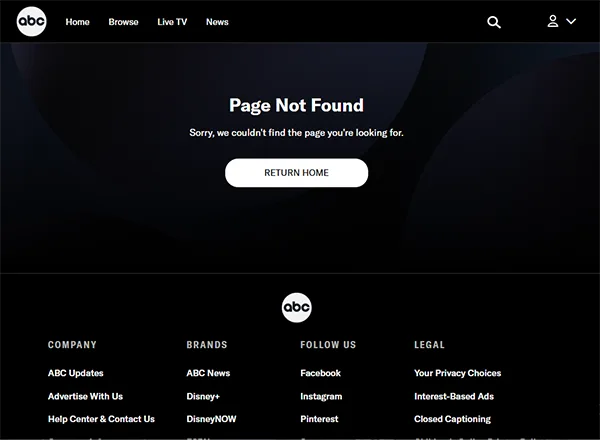
A custom 404 error page is the webpage shown to the client when they try to visit or click a URL that does not exist. The error page navigates the user to supportive website links and doesn’t leave them at a dead end. Custom pages are mainly created for HTML sites and for WordPress sites.
Below are the steps to create a custom 404 error page on WordPress and HTML-based sites:
Steps to Create a Custom 404 Error Page for WordPress Sites
The ways to create a custom 404 error page on a WordPress site are the WordPress site editor theme, plugins dedicated to 404 pages, theme builders, and using custom theme code (done by a developer). I will show you the most common way, which is using the dedicated plugins available on WordPress. Steps to create a custom 404 error page using a plugin are:
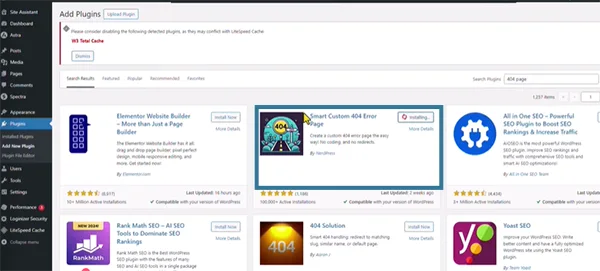
- Go to your WordPress admin dashboard, click on Add New Plugin, and search for the 404 error plugin.
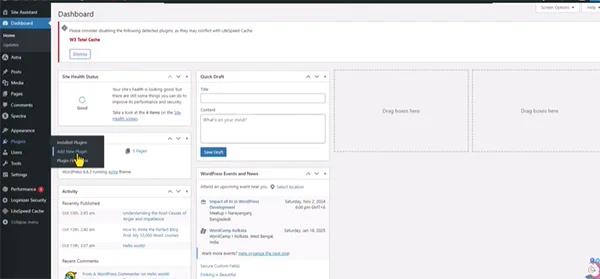
- Install the Smart Custom 404 Error Page plugin
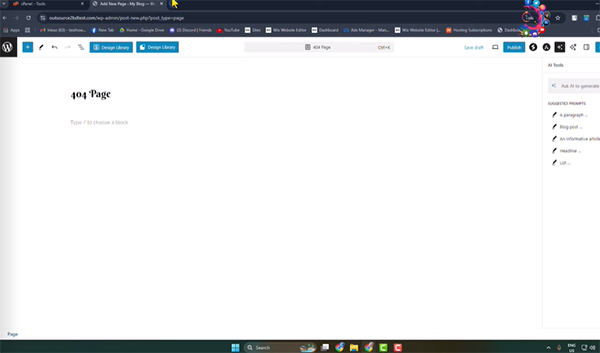
- To create a custom page, click on New Page and give the title: 404 Page.
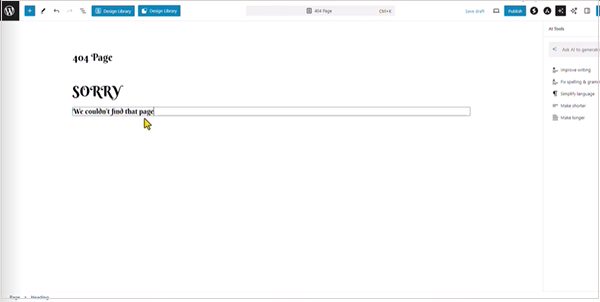
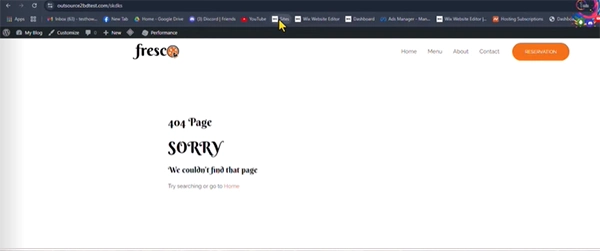
- Create a custom page of your choice by adding a heading like SORRY. We couldn’t find that page or the content to be published on the page. You can use the templates available online to get guidance.
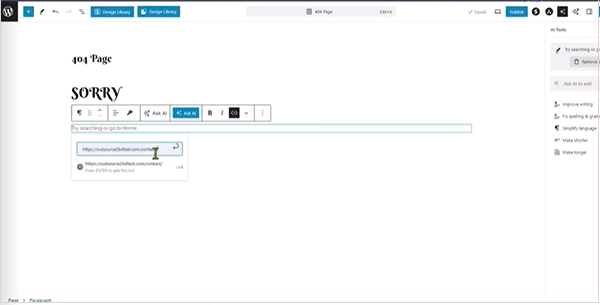
- Paste your website link if you want to redirect the user to the main page of your website.
- Publish the page and go to Appearance, where you will see the 404 error page.
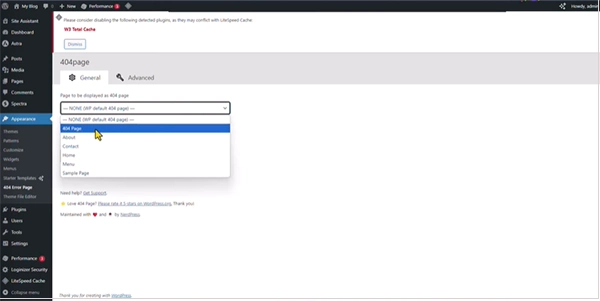
- Click on the dropdown option and save the changes
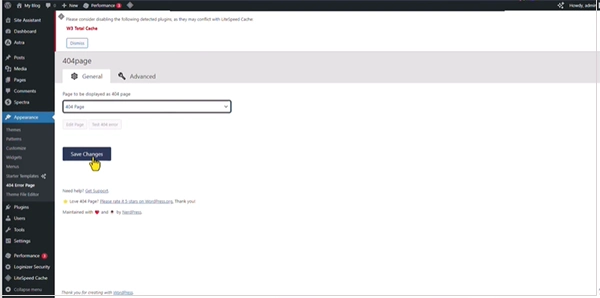
- After all page preparation is done, go to the site and try searching for your site domain with a typo error; you will see a custom page that is your 404 page for your site.
Steps to Create a Custom 404 Error Page for HTML-Based Sites
Creating a custom 404 error page for HTML sites is quite a complex part of routing them to the site server configuration. It depends on your site’s web hosting. I will show you how to create a custom 404 error page if your website is hosted on an Apache server, as it is a widely used server for web hosting due to being open, flexible, open source, and highly modifiable internet architecture. Steps to create a custom 404 error page on HTML sites are:
- Open the text editor (Notepad) on your device and create HTML code for the 404 error page with a proper title. Add relevant information, such as redirecting information and code.
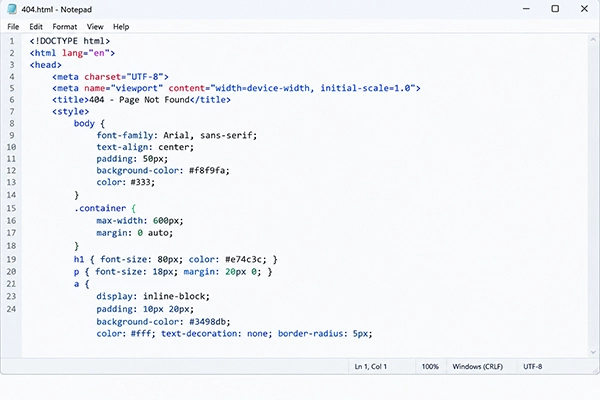
- Once you are done with the coding, save the file with the name 404.html.
- Now, to instruct your server to use your newly created file, you need to create an .htaccess file. For this, again, use the text editor and write the code “ ErrorDocument 404 /404.html”.
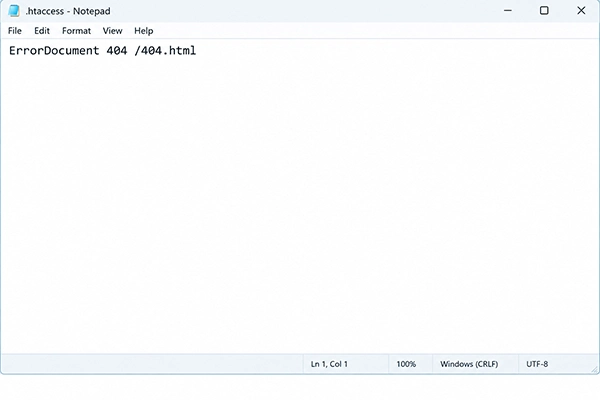
- Save this file using the “.htaccess” name.
- Upload the file to the server using cPanel on your computer or using an FTP client. For this, go to the root directory of the site (public_html or www) and upload the file to the folder.
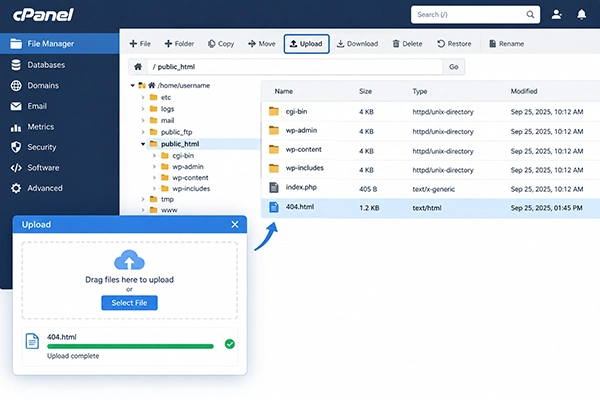
Note: “.htaccess” basically stands for hypertext access, a configuration file that is used by the Apache server to manage the directory settings. It does not use any filename before the dot (.) as “.htaccess” is the entire filename, and “htaccess” is the extension in it.
Why a Custom 404 Error Page Matters?
Creating a custom 404 error page provides multiple benefits to site owners, such as redirecting users to other helpful links on your site, displaying the right status code and message on the page, improving user experience, reducing bounce rates, and increasing SEO performance.
The major benefit os a custom 404 error page on your website is that broken or deleted links will not impact the visitor’s experience on the site. He/she will get a clear indication of the next steps as designed by the website owner. Some of the benefits of the custom 404 error page are:
1. Display a Clear Status Code and Message
The user get to see the clear 404 Page Not Found message and the clear messages like “Sorry, we couldn’t find the page now” or “The page you are searching for has been deleted by the user” which helps the user to understand the real reason for not getting the desired result for which he/she was searching.
2. Improved User Experience
While the general 404 error pages confuse the visitor about what to do when they don’t find the page they were searching for, the custom 404 page error provides supportive links or a search bar to redirect the user to other pages of the website, which leads to the user’s satisfaction.
3. Decreased Bounce Rates
When the user is satisfied with the helpful error page, your website’s credibility is built in their mind (they consider it a good website), and they stay on your website rather than leaving it too early. They explore the other redirected pages, which ultimately helps to reduce the bounce rate of your website.
4. Improved SEO Performance
When bounce rates of the site decrease, Google notices the change and helps to rank better on the search engine. User retention, decreased bounce rates, increased click-through rates, and increased no. of sessions per user together contribute towards improving the SEO performance and ranking of the website.
Also read: Custom Website vs. Website Builder: Which Is Right for Your Business?
Conclusion
The 404 error is an HTTP status code displayed on the user’s screen when he/she tries to search the URL or link that is either broken, deleted, or moved by the site owner. It can happen if the link is mistyped or deleted or if there is some site/server on the owner’s end.
If you also face the 404 page error on a site as a visitor/user, you can refresh the website, retype the link correctly, clear your browser cache, or contact the site owner for further help. As a site owner, you can create a custom 404 page so that the error page doesn’t affect your site’s overall SEO performance.
Frequently Asked Questions
What is the error 404?
A 404 error means the status code displayed on the screen when the requested URL is either broken, mistyped, or deleted from the site owner’s end.
What is the difference between a hard 404 error page and a soft 404 error page?
A hard 404 error displays the Error 404 when the searched URL is missing, while in a soft 404 error page, the displayed page is the same, but the 200 OK message sent by the server to the search engine misleads the engine into thinking that everything is fine with the link and the page is functional.
What is the custom 404 error page?
A custom error 404 page is the page created by the site owner to be displayed on the user’s screen when he/she searches for a URL that is missing or does not exist. It is not a general 404 error page, but it contains a clear status code, a clear reason for not displaying the page, and some helpful links to navigate the user to other pages of the site.
How to fix the 404 error from the site owner’s end?
To fix the 404 error from the site owner’s end, you should set a 301 redirect to navigate the user to the relevant and working links. Rewrite the content if it has been deleted by mistake.
How to track the broken links on your site?
You can track the broken links on your site using some trusted online tools like Google Search Console, Dead Link Checker, Ahrefs, W3C Link Checker, etc. These tools alert you about broken links before the Google crawlers can reach them.