While surfing the internet on a new webpage, if you ever encounter a 403 Forbidden error code, you might be shocked for a second and try to move on to a different platform. But if it starts happening regularly, it will cause major disruption to your in-depth research or completing important tasks.
However, you don’t need to stress out, as this issue can be easily fixed using some tweaks and changing protocols. In this blog post, we are going to cover everything about HTTP error 403, including its variations and common troubleshooting methods to remove it from your browsing experience, Understanding what web development involves can also help website owners recognize where access and configuration problems may arise.
Read till the end for best results!
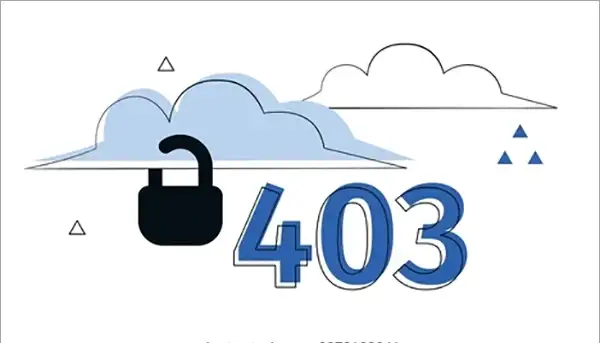
Quick Answer: The 403 Forbidden error is an HTTP status code meaning that the website server has understood your request but refuses to grant it.
What Does 403 Forbidden Mean? (Meaning and Definition)
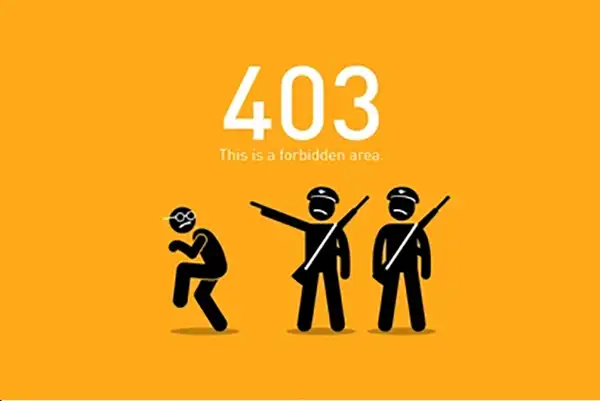
A 403 Forbidden Error indicates that the web server you’re trying to reach is rejecting your request. This looks just like a 401 Unauthorized message (which is a ‘you have to log in’ message), but at 403 there are no credentials that will get you in. This usually happens because of an IP block, a VPN or proxy filtering your traffic, or strict server permission rules denying entry to that specific page. Websites built through custom website development need properly configured access rules to prevent these issues.
For removing this, you need to follow some easy troubleshooting methods like debunking proxies, verifying accounts, clearing all the cache data, etc. In the next few phases, you are going to explore how to fix these issues in detail, but first let’s see some of their presented variations.
403 Forbidden vs 401 Unauthorized (and 404)
While surfing on the internet, many people don’t see the actual meaning behind different errors, and they just start refreshing pages again and again, which doesn’t get them anywhere. Every error has a different meaning and requires a distinct solution. So, instead of getting confused between the 403 Forbidden error and the 401 Unauthorized error, learn their basic classification mentioned in this comparison chart.
| 403 Forbidden | 401 Unauthorized |
| 403 Forbidden means you are verified but unauthorized. The server knows exactly who you are, but you do not have permission to view the resource. It can be due to security restrictions, regional unavailability, or even backend issues. Many troubleshooting methods work here, like clearing browsing data, improving browser settings, disabling VPN or other proxies, but sometimes you just have to wait for the website’s response. | A 401 Unauthorized error shows up whenever you are unverified or using a fresh account that doesn’t have many credentials. In these scenarios, web servers claim your profile as suspicious and won’t allow you to enter. If you add all the human details to your account, like a profile picture, phone number, address, or enable GPS location, then most likely it won’t pop up on your screen. |
Businesses operating online stores should also ensure their e-commerce website development includes appropriate access controls for customer and administrative pages.
Read more: What is Machine Learning? Algorithms, Software & Web Applications
Common Names for the 403 Errors
Well, the 403 Forbidden can be displayed in different formats on websites or webpages due to commonly used variations of custom web development platforms like WordPress, WooCommerce, Wix, Magneto etc. Website owners using a DIY site builder should also check the platform’s permission and security settings. To make this concept simple, we have created this brief chart that lists various names of this error code from users’ POV.
| Standard Name Variation | Website-Based Custom Variation |
|
|
How to Fix a 403 Forbidden Error (For Visitors)?
Fixing a 403 Forbidden error can be easily done if you use some of these easy yet effective measures, which are mentioned here. If a website has grown beyond a template-based setup, reviewing the differences between a custom website and a website builder can help owners plan a more manageable platform.
- Page Reload and URL Correction: First of all, reload the page you are visiting after checking the connectivity of the internet. Also, don’t forget to check the URL, as typographical errors, a trailing slash, or incorrect numbers can restrict your usage. If the address uses a vanity URL, confirm that it redirects to the correct destination.
- Clean all the Unwanted Data: Sometimes the sites you visit start installing tracking bots inside your browser files to track your behavior the moment you click on accept cookies. So clearing these cookies is essential in order to make your identity more secure. Also, regularly clear your browser cache to enjoy smooth and restriction-free browser surfing.
- Verify Browser Account: Unverified accounts and guest IDs are usually not allowed to visit some integral web pages or sites as their servers are pretty sensitive about their security protocols and constantly monitor the activity of users. Try to log out and log back in to your most used accounts to gain the trust of web servers easily. Ensure you’re using the right account that doesn’t have any foul names, spam activity, reports, etc.
- Use Browser with Fresh Settings: If you are using any sort of third-party extension in your browser for blocking ads, tracking site traffic, or downloading content, then it’s highly likely it’s the reason that the website is showing a 403 error code. Some site owners also use web design software and plugins that add security or traffic-filtering features, which should be configured carefully.
It happens because many websites do not promote the breach of their content, and to avoid piracy, they infuse such barriers that stop multiple plugins. Even if you don’t want to remove your useful plugins but still wish to use the site, then try using incognito mode, where no such tools get displayed beside your search bar.
- Disable VPN or Proxy: In many scenarios it has been seen often that the VPN we use for protecting our device or making it accessible to different sites based across nationalities is blocking our access to certain webpages. This happens due to special security regulations made to restrict users from a particular region from accessing content that might be banned or not available in their territory. Try connecting to new, reliable location-based servers or visit the site without any VPN.
- Give Some Time: Well, if you give some time and wait for a few hours, then it can fix this issue too. Sometimes the fault does not lie with you, and servers are the real troublemakers. As many websites often go for routine maintenance and updates, during the process, the server blocks anyone from accessing their domain. Regular website maintenance services help site owners manage updates and reduce avoidable access problems.
Read more: Multilingual Website: Benefits, Best Practices & How to Create One
How to Prevent 403 Errors?
If you want to prevent 403 errors from happening over and over again, then there are some important measures that you must take to experience hassle-free surfing without any hindrance.
- Always make sure that you are typing the full address of a valid page or directory with complete accuracy rather than trying to access a restricted folder (which often returns a 403).
- Never forget to ensure that your credentials are fresh, and your account actually has permission to view the dashboard, file, or restricted page.
- Disable the firewalls or VPN proxies, as they frequently block the data signals from reaching the servers.
- Corrupted or outdated session cookies can confuse a website’s permission logic. That’s why you should regularly clear your browser cache and website cookies specifically for the site giving you trouble.
- Keep your device updated with the latest software and security updates, as it will help to maintain it for rendering new content and accessing sites without any potential glitches and crashes.
Frequently Asked Questions
What does 403 Forbidden mean?
Ans: The 403 Forbidden error is an HTTP status code meaning that the website server has understood your request but refuses to grant it. A common cause of this issue is that a security rule, permission setting, or IP block stops you from viewing it.
What is the difference between 401 and 403?
Ans: The most prominent difference between both error codes is that 401 means that you are not authenticated and servers do not even have your authority, while 403 means you are verified but not authorized for accessing a webpage.
Is a 403 error my fault?
Ans: In most scenarios, a 403 error is not your fault because it is an intentional authorization issue caused by restrictions on web servers even after your identity is verified.
How do I fix a 403 Forbidden error on my website?
Ans: To fix a 403 Forbidden error on your website, you can use practices like checking and updating file and folder permissions (set folders to 755 and files to 644), resetting or fixing your .htaccess file, disabling conflicting security or firewall plugins, or verifying that your default index file exists.
Can a 403 error hurt my SEO?
Ans: Yes, a 403 error can hurt your SEO ranking severely because if the search engine crawlers of browsers won’t get access to your webpage, then it won’t be able to rank anywhere on SERPs.
Why am I getting 403 Forbidden on a website I could open before?
Ans: If you are getting a 403 Forbidden on a website, then most probably the web servers of that particular site are not allowing you to visit. There could be restrictions on IP address, country code, or your specific profile.
Is it safe to set permissions to 777 to fix a 403?
Ans: Absolutely not; it is never safe to set permissions to 777 because it allows anyone to read, write, and execute your files, creating a severe security risk where hackers can inject malicious scripts or take over your site.
Conclusion
If you ever run into a 403 Forbidden error, it just means the server knows what you’re asking for but won’t let you access it. It may be due to the wrong file permissions, a broken browser cache, old cookies, or an access control set on a directory; however, for the most part, it can be easily fixed using basic steps and troubleshooting methods. When a site needs a broader visual or structural update alongside technical fixes, professional web design services can help improve its overall experience. You can opt to clear your browser data, recheck the URL, or even check your login details for the best result. For more such intriguing topics, make sure to stick with Digitaladdex for daily IoT updates.