Coding languages like CSS, JavaScript, C++, HTML, etc, are vital for creating and managing online platforms, but the tricky part is that each of these languages is not capable of both front-end and back-end development. Learning their interlinking for creating variations in style is a must today. So if you want to bootstrap your computing practices, then this article is here to cover all your needs. Here we are going to learn how to link CSS to HTML in a few easy methods along with some best practices.
Let’s get started!
What Is CSS and a Style Sheet?

CSS means Cascading Style Sheets, which is a programming language that is used for displaying and representing different types of grids, layouts, themes, and design language of webpages that are written in HTML.
It is one of the most prominent languages that is being used nowadays for creating countless online projects, AI bot development and deployment, and managing existing frameworks. On the other hand, a style sheet is a document that stores the code for these actions along with so many pivotal formatting rules that prevent users from coding failures.
When working on complete website development services, understanding how HTML and CSS work together is essential for creating functional and visually appealing websites.
How to Link CSS to HTML?
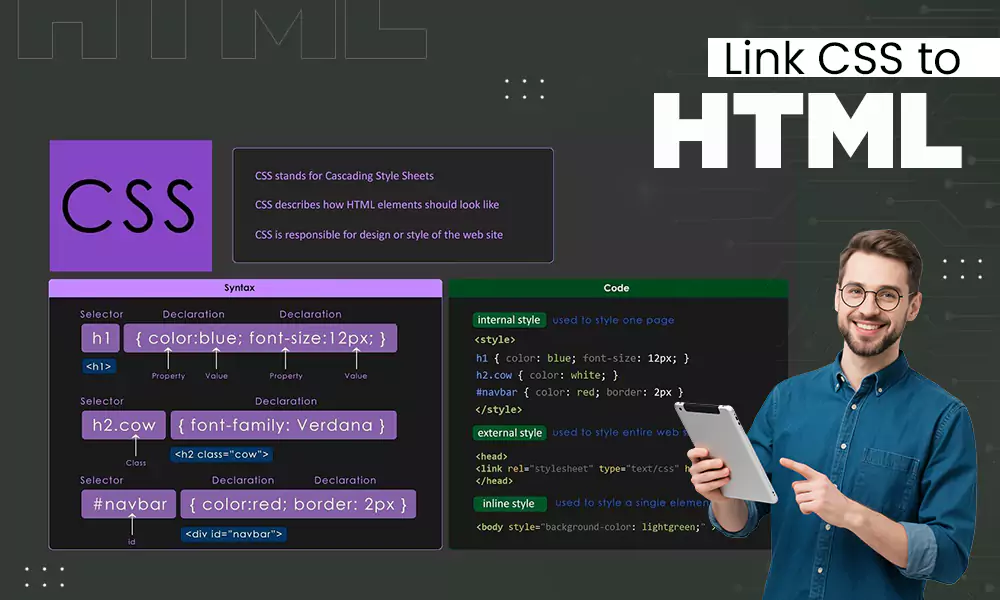
To establish a complete link between CSS and HTML, you have three choices: external, internal, or inline CSS. In this phase, we are going to explore these options in detail and tell you which one is best for each coding project.
1. External CSS
External CSS linking is one of the most popular methods used by developers, as it separates designs from the entire HTML content, giving space for working on a lot of things at once. The major reason for its widespread popularity is that it is best for big websites that have countless webpages, as it separates content and theme, which allows developers to improve accuracy and rapidly execute changes on certain fractions. Here we have presented its clear demonstration.
<head>
<link rel=”stylesheet” href=”styles.css”>
</head>
Steps Breakdown:
- Here, the <link> tag creates a connection between the HTML and an outside file.
- Next up, the rel=”stylesheet” attribute tells the linked file that it has the preferred styles.
- The href=”styles.css” attribute provides the exact name and path of the target file.
- Lastly, the browser understands the styles and applies the changes.
For larger projects, proper enterprise web development practices can also help ensure that website structures remain scalable and manageable.
2. Internal CSS
Internal CSS is not a type of method that can be used in every situation; in fact, it is only ideal when you have to add style to a single HTML page using the <style> tag inside the <head> block. Due to this limitation, many people use it for minor changes. We have attached an example below for more clarity.
<!DOCTYPE html>
<html lang=”en”>
<head>
<meta charset=”UTF-8″>
<title>Internal CSS Example</title>
<style>
body {
background-color: linen;
}
p {
color: maroon;
font-size: 18px;
}
</style>
</head>
<body>
<p>This paragraph is styled using an internal stylesheet.</p>
</body>
</html>
Steps Breakdown:
- Place a <style> tag inside the <head> section of your HTML page, as it indicates to the browser the incoming style rules.
- Now, before opening the curly brace, select the HTML tag you want to change, like body or p.
- Type your styling instructions inside the curly braces {} and end it with a colon or semicolon.
- Save the file and check for the style changes in the browser.
3. Inline CSS
Inline CSS is a versatile method because it is used to apply unique styles to a single HTML element. It is special because it uses (style=) directly in the HTML tag without adding any other characters. Below you can see a detailed example.
<!DOCTYPE html>
<html lang=”en”>
<head>
<meta charset=”UTF-8″>
<title>Inline CSS Example</title>
</head>
<body>
<!– Styling individual elements directly –>
<h1 style=”color: blue; text-align: center;”>A Blue, Centered Heading</h1>
<p style=”color: red;”>A red paragraph.</p>
</body>
</html>
Steps Breakdown:
- Open the HTML document and find the specific tag you want to style, such as <h1> or <p>.
- Write the style= directly inside the opening tag of the selected document.
- Now, put values inside the quotes, separating them with colons and ending each with a semicolon, like color: blue;.
- Save the file and load it into the browser
Using effective web design services can further help businesses create websites where the visual design and underlying code work together effectively.
Read more: The Web Design Process, Step by Step: What to Expect Working With an Agency
Common Problems When Linking CSS to HTML

While doing this process, there are some common problems that most of the people go through due to a lack of proper instruction or inappropriate execution of code. So to minimize this factor and provide you with awareness, we have mentioned recurring issues that you must avoid in this interlinking process.
- Mentioning incorrect file paths in your CSS files will confuse your browser into completing the action and rendering the output. Try to mention exact paths for best results.
- Sometimes you can write an incorrect file name in the accurate path, and it won’t make things better, and you will be left with constant failure.
- Not adding a <link> tag will cause disruption in the process because the browser will read the file path but won’t apply the styles.
- Even minute details like the unavailability of “;” or “}” can make multiple CSS syntax errors.
- Most of the browsers store the older version of your CSS files, and the browser cache prevents updated styles from appearing. Try to refresh the page before running or making changes in your code. When a website is regularly updated and supported, proper website maintenance can help prevent technical issues from affecting its performance.
Read more: What Makes a Good Website? Essential Features, Design Tips, and Best Practices
Best Practices for Linking CSS
Last but not least, we have to talk about some of the best practices that you can implement while linking CSS so that you can avail the best benefits in your outputs without any errors in the coding structure.
- Never forget to ensure that placement should be <link> tag inside <head>, as it helps in rendering spaces before the layout is completely installed.
- Don’t try to put @import inside a stylesheet because it causes a sudden decline in loading speed.
- Make sure to keep the CSS linking tabs and HTML linking tabs separate from each other because both frameworks can overload the system capacity, and you can face issues in production.
- Store files in a structured manner rather than in decentralized ways using named files like css/ or assets/css/ as it allows better integration approaches with HTML modules without any coding failures. For websites that include online stores, proper e-commerce website development is also important for creating a reliable and user-friendly experience.
Read more: What Is a Website Link? Understanding URLs, Hyperlinks, and Web Addresses
Frequently Asked Questions
How do I link CSS to HTML?
If you want to link CSS to HTML, there are three core methods: inline CSS, external CSS, and internal CSS, where you need to place a <link> element inside the <head> section of your HTML file.
What is a style sheet in HTML?
A style sheet in HTML is a blueprint that contains important framework rules, design requirements, and layouts for managing or compiling a website.
Can I add CSS to HTML without a separate file?
Yes, you can easily add CSS to HTML without integrating a separate file using procedures like Internal CSS and Inline CSS.
Why is my CSS not working in HTML?
Well, there are a couple of reasons why CSS is not working in HTML, like incorrect file paths in your link tag, unsaved file changes, or aggressive browser caching.
Conclusion
These are three of the best methods that you can use to link CSS to HTML without any prior errors in the coding frameworks. To achieve the perfect link with a maximum success rate, you need to follow some best practices like using named files like css/ or assets/css/ and placing the <link> tag inside <head> to avoid recurring issues.
Also, try to avoid common mistakes like missing link tags or mentioning improper tags, which can break your code, making it irrelevant. Undoubtedly, coding demands precision, and in the initial stage you might make some mistakes in the interlinking, but with time and constant dedication, things will get better. Also, for more such intriguing articles, make sure to stay with Digitaladdex.