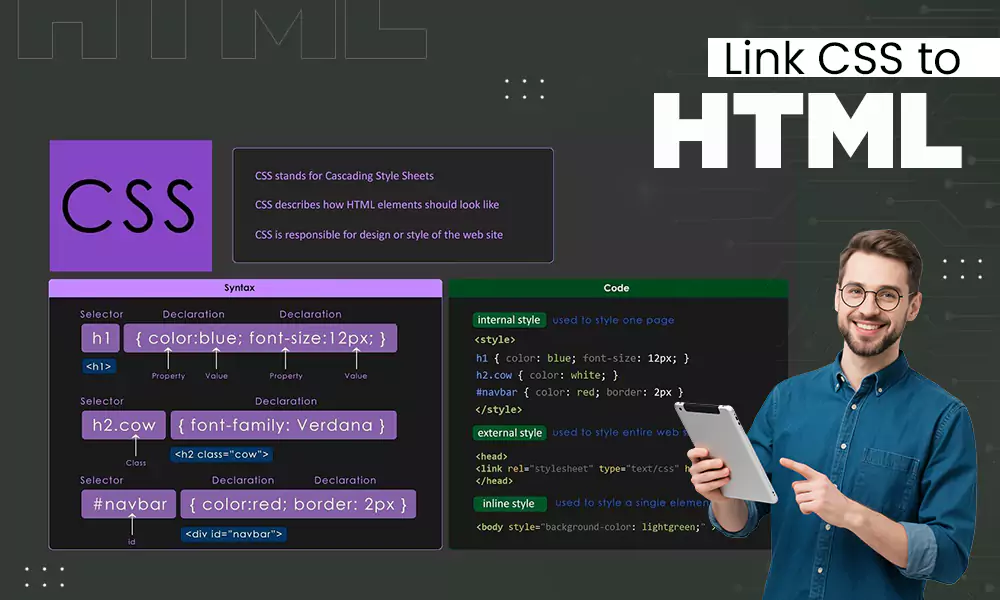
HTML background image is a picture placed behind your website or content to make your webpages look appealing and make text readable. Using CSS attributes like background-image within the HTML head and body tags, you can easily add a background to the web page. In this guide, we are going to uncover these ways along with their code snippets.
- What Is an HTML Background Image?
- How to Add a Background Image in HTML
- How to Set a CSS Background Image
- How to Make a Responsive Background Image in CSS
- Understanding CSS Background-Position
- How to Prevent a Background Image From Repeating
- Common HTML Background Image Problems
- Best Practices for HTML and CSS Background Images
- Frequently Asked Questions
- Conclusion
What Is an HTML Background Image?
An HTML background image is a graphic element that is placed behind the text layer of the webpage. It can be anything, such as an image, color, texture, gradient, etc., which acts as the first layer of visual appearance. In simpler terms, it is an important room wall that helps to showcase photo frames and relics.
A coding language called CSS (Cascading Style Sheets) is used to add the image in different variations. The CSS here carries out all the styling and dimension-based alterations to match the requirements of specific webpages. It can be adjusted in formats such as displaying an image as an entire page, a single banner, or placed within a box-like structure.
How to Add a Background Image in HTML
To add a background image in HTML, you use CSS (Cascading Style Sheets). The best way to do this is by using the background-image property and pointing it to your image file link. Use the following code for reference.
<!DOCTYPE html>
<html>
<head>
<title>Background Image</title>
</head>
<body style=”background-image: url(‘image.jpg’);”>
<h1>Welcome</h1>
</body>
</html>
Key Attributes:
- Makes a streamlined webpage using basic HTML structure.
- Inserts an image directly within the HTML file.
- Includes the style attribute with background-image.
- To be syntax-free, it needs a correct image file path.
- Best used for creating small projects or quick webpage changes.
Read more: DIY Site Builder: The Complete Guide to Creating a Website in 2026
How to Set a CSS Background Image
To set a background image on a web page, you can create a CSS file and link CSS to HTML or add the style element within the HTML code. There are different parameters you can use to adjust the background image style, which we will see in the upcoming sections. For now, you just need to add the background-image and url(“image.jpg”) attribute, which will link your image to the code. See the reference below for a basic example.
<!DOCTYPE html>
<html>
<head>
<style>
body {
background-image: url(“image.jpg”);
}
</style>
</head>
<body>
<!– Your page content goes here –>
</body>
</html>
Key Attributes:
- It adds CSS style to specific components of the web page.
- Selects the webpage element with the help of the style tag.
- Uses the background-image property to add images.
- Maintains a clear separation between HTML and design code.
- The CSS method used here is ideal for adding specific style to a particular component.
How to Make a Responsive Background Image in CSS
Responsive image designs provide flexible backgrounds that work on mobile, tablet, and desktop. Properties like width and height control the dimensions of objects on a digital screen. On the other hand, background-size controls the size, background-position changes the position, and background-repeat controls the repetition. Read the reference code below to add responsive background image CSS.
.hero {
width: 100%;
height: 100vh;
background-image: url(“image.jpg”);
background-size: cover;
}
Key Attributes:
- The 100% width and height ensure responsive image dimensions.
- Forms a section or container for the background.
- Applies a background image using CSS properties.
- Uses background-size: cover to fit different screens.
Read more: Website Redesign: The Complete Guide to Planning a Successful Website Revamp
Understanding CSS Background-Position
Lastly, to maintain or adjust the background position of the CSS background, you need to add measurements like height and width along with their proper pixel density (width: 500px;) to ensure proper image rendering without glitches. Let’s see an example.
.hero {
width: 100%;
height: 100vh;
background-image: url(“image.jpg”);
background-size: cover;
background-position: center;
}
Key Attributes:
- Creates an element where the background image appears.
- Uses background-position to control image placement.
- Positions images using values like center, top, or right.
- Works with background-size and background-repeat.
- It is primarily used for creating balanced and attractive layouts.
How to Prevent a Background Image From Repeating
If you want to prevent a background image from repeating over and over again while zooming in or out of pages, just use the CSS property background-repeat: no-repeat; in your code, and you will see a perfect image according to your selected size or position. Check the reference below for more clarity.
.box {
background-image: url(“image.jpg”);
background-repeat: no-repeat;
}
Key Attributes:
- It helps create clean and organized webpage backgrounds.
- Uses background-repeat to control image repetition.
- Different background-repeat values and use cases:
- repeat: Tiles the image both horizontally and vertically.
- repeat-x: Tiles the image only horizontally.
- repeat-y: Tiles the image only vertically.
- no-repeat: Shows the image exactly once with no tiling or duplication.
- Works perfectly with background-size and background-position.
Common HTML Background Image Problems
There is a high chance that if you are adding a background image to a webpage for the first time, some common errors can happen with your syntax or platform, which will make outputs invalid or invisible. This section covers common HTML background image problems along with some quick fixes.
- Sometimes, even when you add an image, you might miss something, which prevents the code from displaying the image properly. To fix this, you can make manual adjustments in sections like height and width; for example, setting height: 500px.
- If the image gets squished or stretched when you view it, this mostly happens because you neglected to add an important element: background-size: cover. This line tells the browser to scale the photo up or down so it fills the space without losing its original aspect ratio.
- If you are using background-size: cover, then high likely your image is going to be cut off at the edges of the screen because the browser auto-aligns it towards the top-left corner, making it the real culprit of distortion. Fixing this is very easy; you can add background-position: center; to keep the picture in central projection.
- If the same small image repeats over and over instead of one big canvas, this is because of the default browser behavior of stacking images horizontally or vertically (usually when it is smaller than the screen). Simply add background-repeat: no-repeat; in your CSS code to eliminate this viewing problem.
- Lastly, if you are seeing off-guard text that is unreadable on the image, then it is a potential error in coding format. You will easy repair this problem using a background-color tag and using a contrasting color for the text.
Best Practices for HTML and CSS Background Images
To mitigate all these errors in the first place, you need to follow some effective measures that can make image positioning even better on webpages and make your entire process error-free. Below, we have mentioned some expert tips that you must follow.
- Prioritize the establishment of reliable servers for your website so that all the HTML and CSS background can render properly on every device.
- Always add a background-color tag because it loads the text even before the image appears on the user’s screen. This makes webpages more accessible for users who have low-end devices or slow internet connectivity.
- Never let your images get stretched, cut, or distorted, and always integrate the right CSS properties for controlling the structure.
- Make sure to use “cover” and “contain” carefully for responsiveness, as if you make even minor mistakes here, the entire image will become unresponsive and imperfectly presented. It is an important practice for ensuring accuracy in CSS background-size: cover.
Frequently Asked Questions
How do I add a background image in HTML?
The best and fastest way to add a background image in HTML is to use the background-image property.
How do I set a CSS background image?
To set a CSS background image, you need to add the background-image property with the url() function, which points to your image (such as https://link_to_image).
How do I make a full-screen background image in CSS?
To make a full-screen background image in CSS, you need to apply the background image to the <html> or <body> element and use the background-size: cover property.
How do I make a responsive background image in CSS?
Add background-size: cover along with some supportive styles like background-size: cover; or background-position: center; to make a responsive image in CSS.
What does CSS background-size: cover do?
In CSS, background-size: cover; stretches or crops the image to fill the container area and prevents it from being distorted by basic browser behaviors.
Conclusion
These are some of the most useful and straightforward ways to add an HTML background image to webpages, with variations such as full-screen, container, or responsive designs. They are vital for making webpages informative and appealing, so you should code by creating a clear path of CSS rules, avoiding typographical errors, and adding basic positioning commands. If you want to learn more about the dynamics of various coding languages, then make sure to follow Digitaladdex. Keep reading!