You open a link—a dashboard, a download, a private page—and instead of the content, the screen is blank: “401 Unauthorized.” The 401 error is one of the most widespread obstacles on the Internet and is not as alarming as it may seem. A 401 error means that the server failed to authenticate you, so your request is denied until you submit the correct authentication information. It refers to the 401 status code being a part of the 4xx (client-side) group of codes. This guide is useful for website visitors, website owners solving their login issues, and programming specialists troubleshooting their APIs and authentication processes. Understanding the basics of web development can also help website owners identify how server requests and authentication affect website functionality.
In this guide, you will learn what is a 401 error, the reasons for this, a detailed explanation of how to fix it, and additional information.
- What Is a 401 Error?
- HTTP 401 Status Code Explained
- 401 vs 403 vs 404: What's the Difference?
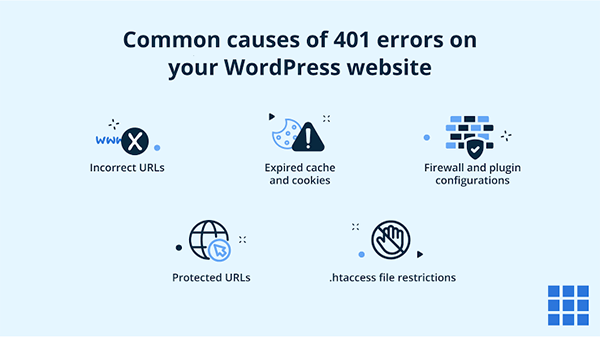
- Common Causes of the HTTP 401 Error
- How to Fix a 401 Error (For Visitors)
- How to Fix a 401 Error (For Website Owners & Developers)
- Does the 401 Error Affect SEO?
- How to Prevent 401 Errors
- Quick Troubleshooting Checklist
- FAQs
- Wrap Up
What Is a 401 Error?
A 401 error is an HTTP client-side (4xx) response, meaning the server can’t verify your identity because your request lacks valid authentication details. Basically, this means that you could have entered an incorrect password, resulting in a 401 Unauthorized Error.
Think of a 401 Unauthorized Error like trying to enter a members-only club when a guard asks you to show your membership card. If you don’t have a valid card, you cannot enter again, but this does not mean you have been banned from the premises. It means that you need to provide proof of being allowed to enter the premises.
401 is different from 403 Forbidden:
- 401: “I don’t know who you are.” You need to perform authentication.
- 403: “I know who you are, but you are not allowed to enter.”
A 401 error can occur in a variety of situations, for instance:
- in web browsers: while opening password-protected pages or sites
- in API clients: while encountering a JSON error from an API request
- in search engine crawlers: while a bot tries to reach content protected by username/password.
In most cases, the issue can be resolved by entering valid credentials or restarting the login session.
HTTP 401 Status Code Explained
Status code 401 means the server requires authentication that was not provided. If you understand how 401 works, you know what the server wants from you and can perform debugging quickly and efficiently.
How the 401 response works
- Client sends a request to access a certain URL
- The server inspects the request to see if there is an Authorization header provided.
- If the header is absent or wrong, the server replies with a 401 response and a WWW-Authenticate header.
- The client then has to enter the credentials and retries.
- The server returns success (200) or another 401.
- The server has not rejected the request; rather, it has issued a challenge based on the authentication requirement.
The WWW-Authenticate header
This header identifies the method the client is required to use for authentication and often provides a realm that defines the space being protected.
Some common methods used for authentication are:
- Basic: the username and password encoded in Base64. This is simple but is secure when used with HTTPS.
- Bearer, which uses a token in OAuth 2.0 and many other modern APIs. Token expiry is a common cause of the 401 error.
- Digest uses a hash-based challenge-response to avoid exposing the password in the transmission.
- Negotiate, which refers to the use of Kerberos or NTLM authentication. This is commonly used within Windows systems.
In case the client attempts to use an incorrect or skipped authentication method, the server will still return a 401 status.
Common 401 message variations
The 401 error code can be shown with different messages depending on the browser, web server configuration, application, or api used. The words might vary by the browser, server, and framework, but the meaning remains the same.
| Message | Where you see it | What it usually signals |
| 401 Unauthorized | Browsers, APIs | Failed or absent credentials |
| HTTP Error 401 – Unauthorized | Browser error pages | User has to sign in |
| Authorization Required | Apache and Nginx | You have to enter a username and password in the protected directory |
| 401.1 – Unauthorized: Logon failed | IIS | Wrong credentials |
| 401.2 – Not Authorized: Logon failed | IIS | A discrepancy between authentication methods on client and server |
| Invalid token or token expired | API JSON responses | Malformed endpoint or expired bearer |
401 vs 403 vs 404: What’s the Difference?
The http error 401, 403, and 404 are three common HTTP error responses that can prevent users from visiting a requested webpage or resource. The table shows the differences between the three errors.
| Code | Meaning | Identity known? | Typical cause | Typical fix |
| 401 Unauthorized | Access denied due to the absence of identification | Not applicable | Invalid identification | Log in with correct credentials |
| 403 Forbidden | Access is unsuccessful despite being identified | Applicable | The access is blocked for some reason | Contact the owner of the web page |
| 404 Not Found | No web page exists at a specific address | Not relevant | A typo in the address, the page is deleted or moved |
The 401 HTTP error is often mistaken for the 403 error, as both are characterized as “access denied.” However, the difference between the two is in the identity of a user. The 401 response means that a user has provided invalid identification. For the 404 error, there is no relation to the authenticity of the user as the error code appears in many similar troubleshooting talks involving all of them.
Common Causes of the HTTP 401 Error
The HTTP 401 error may occur if there is a problem on the client side, server side, or in the network between them. Here are some of the most common causes of the 401 error code.
Mistaken or Expired Credentials
- A typo made while entering the password, an old password saved and used again, or a password that has changed on another device.
- Browser’s autofill giving an outdated credential.
Expired, missing, or invalid API key/token
- A cached OAuth 2.0 access token that has expired and the refresh token was not utilized.
- An API key that was revoked, rotated, or incorrectly scoped.
- An absent Authorization: Bearer header.
Outdated browser cache and cookies
- An outdated session cookie that denotes an expired session.
- A corrupt cookie leading to the server’s request rejection.
Incorrect or mistyped URL / broken link to a protected page
- A link that is pointing to a protected directory without being authorized.
- An updated URL where the old link still directs to an auth-protected path.
Server misconfiguration (.htaccess / .htpasswd, Nginx auth, auth module)
- An Apache .htaccess file securing a public directory.
- A wrong application of nginx auth_basic to a certain location block.
- Misbehavior of an authentication module.
Incorrect server settings can affect website accessibility and prevent users from reaching resources. Reliable web hosting and properly configured server environments are important for maintaining website availability and authentication functionality.
Plugin, firewall, or security-tool conflicts (WordPress / CMS)
- A security plugin is preventing requests from reaching the WordPress authentication step.
- A CDN or WAF is putting in its own auth challenges.
Regular website maintenance helps identify plugin conflicts, outdated components, and configuration issues that could interfere with website security and user access.
Restricted IP or blocked request
- An IP allowlist prevents the client from working.
- There may be geo-blocking or rate-limiting that is returning 401 instead of 429.
The 401 error code usually appears when trying to access private pages, the login forms, on staging sites, or in app-to-site API connections.
How to Fix a 401 Error (For Visitors)
Here are the steps to fix the 401 unauthorized error.
1. Re-enter your credentials and reset your password
Log out completely and log in again. If the password does not work, use the “Forgot password” option.
2. Check the URL for typos
Compare the URL with the link given to you. Check if you have added or missed any characters.
3. Reload the page / sign out and back in
Try performing a hard reload (Ctrl+Shift+R), which will clear the temporary auth states.
4. Clear browser cache and cookies
Clear your browser’s cache and cookies. You can do it through the settings tab of your browser. Here’s how to do it:
- In Google Chrome, go to Settings > Privacy and Security > Clear browsing data > Cookies and other site data.
- In Firefox, go to Options > Privacy and Security > Clear Data.
- In Microsoft Edge, go to Settings > Privacy, Search, and Services > Clear Browsing Data.
- In Safari, go to Safari > Preferences > Privacy > Manage Website Data and then remove all data.
Then reload the website again.
If you still face any issues accessing your account, you can disable your browser’s extensions.
5. Disable browser extensions or try incognito mode
If they changed the website header information or blocked the scripts, extensions can disrupt the authentication process. Incognito mode runs almost all extensions, so if you see that the page works in that mode, it means that the extension is the cause of this error.
6. Flush the DNS cache (Windows / Mac commands)
- Windows: In the Command Prompt, type ‘ipconfig /flushdns’.
- Mac: Launch Terminal and run ‘sudo dscacheutil -flushcache; sudo killall -HUP mDNSResponder’
This is useful when CDN or DNS auth redirection is outdated.
7. Contact the website owner
Enter the full URL, the specific error message, your browser type and its version, as well as a screenshot of what’s wrong. Don’t forget to say whether it was a logged-in user or not.
How to Fix a 401 Error (For Website Owners & Developers)
Start by checking what the server sends back and end by analyzing what is going on in the network and what 401 authorization required.
Begin the process by identifying what the server is returning, moving towards the HTTP error 401 and then the network. Website owners managing complex applications may also need professional website development services to address deeper authentication and server-side issues.
Check the WWW-Authenticate header in the response (browser DevTools / curl)
In the browser’s Developer Tools
- Go to the Network tab,
- Click on the 401 request,
- Navigate to the Response Headers and look for WWW-Authenticate.
- Use the Terminal-self tool: curl -I https://example.com/protected-page
- Find HTTP/1.1 401 Unauthorized and the WWW-Authenticate line.
The scheme in this line indicates what the 401 http server needs.
Verify API keys, bearer tokens, and OAuth 2.0 token expiry
If a JWT is used, then decode it and check whether the exp claim is equal to the current Unix time:
- echo “$TOKEN” | cut -d. -f2 | base64 -d 2>/dev/null, date +%s
- Confirm the token is being sent as Authorization: Bearer, and test it directly:
- curl -i -H “Authorization: Bearer $TOKEN” https://api.example.com/v1/me
- Then finally check for the flow of refresh tokens.
Expired access tokens are usually one of the reasons this happens.
Review server authentication config(Apache .htaccess/.htpasswd, Nginx auth_basic)
Go through your Apache .htaccess file for AuthType Basic, AuthName, AuthUserFile, and Require valid-user. Ensure that your .htpasswd file exists and that the path is valid.
For Nginx, check for the directives auth_basic and auth_basic_user_file. Ensure your authentication rules are applied in the right location block.
Disable plugins / security tools one by one (WordPress)
Deactivate your security, membership, and caching plugins separately and check the URL after each. Use WP-CLI with the command wp plugin deactivate. If the 401 error goes away, the last deactivated plugin is the culprit.
Check firewall, CDN, and IP allowlist rules
- Examine any WAF rules that could affect authentication queries.
- Inspect the CDN configuration for authenticated origin retrievals or token authentication.
- Ensure the IP of the client is not blocked by a whitelist or geo-rule.
Read server and authentication logs
The paths given below are standard for Debian and Ubuntu; they may differ for you.
- grep “401” /var/log/apache2/access.log | tail
- grep -i “auth” /var/log/apache2/error.log | tail
- grep -i “auth_basic” /var/log/nginx/error.log | tail
In order to find 401 codes and messages related to this,
in Apache, you need to check messages in the auth module.
In the case of Nginx, search for auth_basic failures. Check log files for errors on the application related to token validation.
Does the 401 Error Affect SEO?
A search engine cannot index a page with an HTTP 401 error. Thus, if a URL returns a 401 code, it won’t be indexed, and ranking signals will not have any effect
Private pages do not pose any problems. 401 error occurs on genuinely private pages like a member area, a staging site, or an admin panel. It has no negative effects on SEO.
Public pages are a cause for concern. If a public page gives a 401 error due to misconfigured auth, a faulty plugin, or a blocked firewall rule, it can result in loss of traffic, wasted crawling budget, and a frustrating experience for users.
How to find and fix SEO-related 401 errors
- To utilize Google Search Console, access the Pages report and search for “Blocked due to unauthorized request (401).”
- To utilize Crawl Stats, check for 401 response codes.
- To utilize Server Logs, filter based on status code 401.
- To utilize Screaming Frog crawl, filter the crawl using 401 status code.
How to fix it:
- Eliminate any accidental authentication made to a public page.
- Avoid including private parts in your sitemap and disallow them via the robots.txt file where applicable.
- Monitor for spikes in 401 when upgrading plug-ins, changing servers, or altering CDN.
How to Prevent 401 Errors
- Use Tried & tested methods: OAuth 2.0, secure session mechanisms, and two-factor authentication must be utilised.
- Refresh Tokens and sessions: Verify automatic renewal of tokens and refresh tokens regularly.
- Must design effective error pages: Access denial explanation and guidance on the expected next steps must be provided together with support contact.
- Check authentication logs: Increased rates of 401 responses must be checked for configuration and token issues.
- Upgrade CMS and plugins: A properly functioning WordPress installation and correcting theme issues require updated versions.
- Educate users about it: Strong passwords and password managers need to be promoted among users.
- Track the number of 401 responses: Unusual increases in such figures must be taken into account when checking Google Search Console and server dashboards.
Quick Troubleshooting Checklist
- Check that the URL is correct and the page is publicly available.
- Log out and log back in; choose to reset the password if required.
- Clear the browser cache and cookies, and restart it.
- Use incognito mode or disable the browser extensions.
- Flush the DNS cache (Windows: ipconfig /flushdns; Mac: sudo dscacheutil -flushcache; sudo killall -HUP mDNSResponder).
- Authentication of API calls requires knowledge of the authorization header, token expiration, and API key status.
- For website owners, the check must include WWW-authenticate and server auth configuration parameters, plugins, and firewall rules.
- If the page is public and still produces a 401 error, check Google Search Console and server logs.
FAQs
What does error 401 mean?
When we talk about a 401 error, it means that the server doesn’t recognize who you are, thus denying your request. You have not provided the necessary credentials, or they are invalid or expired. In technical terms, the 401 error is a client-side error, meaning that it is classified as a 4xx status. You may see the WWW-Authenticate header in the response explaining what the server needs.
Is a 401 error my fault or that of the website?
With a 401 error showing up, it is most likely related to the credentials or request you made. This error indicates a client-side status code; however, sometimes it may also be caused by server misconfiguration, a plugin conflict, or a firewall rule, even if you are sure that your login is correct.
What is the difference between a 401 error and a 403 error?
In short, a 401 error indicates that the server doesn’t know who you are since there is no authentication, while error 403 signifies that the server knows who you are but doesn’t allow you to access the resource since you don’t have the required privileges.
Does HTTP 401 affect SEO negatively?
In case of a 401 error occurring on a truly private page, it does not negatively affect SEO as long as the URL isn’t in the sitemap and does not link to any public content. In the case of a public page that should get indexed, the 401 error may be damaging for SEO because there will be no crawling and indexing.
What does “401 authorization required” mean?
“401 Authorization Required” is simply a name of the error that is represented by the HTTP status code 401. It signifies that the user needs to pass authentication in order to access the requested resource. The error appears in the logs of Apache or Nginx when the authorization prompt is terminated after entering the wrong credentials.
Wrap Up
An HTTP 401 error is not a deadlock but means that the server is requiring your identity proof. Whether you are just a visitor trying to get rid of an outdated cookie or a maker checking the WWW-Authenticate header, you need to fix the error; you should first understand that HTTP 401 means “authentication,” not “denied.” Hence, change the credentials, token or server configuration.
For more tips on how to solve HTTP status code problems, read our related articles or contact our support team if you are still facing a 401 error.